Tuesday, December 20, 2011

Read Connection String from Web.Config

using System;
using System.Collections.Generic;
using System.Linq;
using System.Web;

namespace Demo
{
public class ApplicationGenral
{
internal string ConnectionStr()
{
System.Configuration.Configuration rootWebConfig =
System.Web.Configuration.WebConfigurationManager.OpenWebConfiguration("/DemoApp");
System.Configuration.ConnectionStringSettings connString;
if (rootWebConfig.ConnectionStrings.ConnectionStrings.Count > 0)
{
connString = rootWebConfig.ConnectionStrings.ConnectionStrings["AuthDemo"];
if (connString != null)
return connString.ConnectionString;
else
return "";
}
else
{
return "";
}
}
}
}

Sunday, May 29, 2011

Self Join and when do you use it

Self Join and when do you use it

Use the script below to create Employee Table and populate it with some sample data. We will be using Employee Table to understand Self Join.

CREATE TABLE EMPLOYEE (
[EMP_ID] INT PRIMARY KEY,
[NAME] NVARCHAR(50),
[RO_ID] INT
)
GO
INSERT INTO EMPLOYEE VALUES(101,'Amol',102)
INSERT INTO EMPLOYEE VALUES(102,'Amit',104)
INSERT INTO EMPLOYEE VALUES(103,'Swati',102)
INSERT INTO EMPLOYEE VALUES(104,'Chetan',103)
INSERT INTO EMPLOYEE VALUES(105,'Rakesh',NULL)
INSERT INTO EMPLOYEE VALUES(106,'Sree',103)
GO

We use Self Join, when we have a table that references itself. For example, In the Employee Table under RO_ID column points to EMP_ID column. This is the right scenario where we can use Self Join. Now suppose you want to write a query that will give you the list of all Employee Names and their respective Reporting Officer’s Names. In order to achieve this you can use Self Join.

Employee Table


The query below is an example of Self Join. Both E1 and E2 refer to the same Employee Table. In this query we are joining the Employee Table with itself.

SELECT E1.[NAME],E2.[NAME] AS [RO NAME]
FROM EMPLOYEE E1
INNER JOIN EMPLOYEE E2
ON E2.EMP_ID =E1.RO_ID

If we run the above query we only get 5 rows out of the 6 rows as shown in Results1 below.


Output 1

This is because Rakesh does not have a Manager. RO_ID column for Rakesh is NULL. If we want to get all the rows then we can use LEFT OUTER JOIN as shown below. For a list of all different types of JOINS in SQL Server, please


SELECT E1.[NAME],E2.[NAME] AS [RO NAME]
FROM EMPLOYEE E1
LEFT OUTER JOIN EMPLOYEE E2
ON E2.EMP_ID =E1.RO_ID
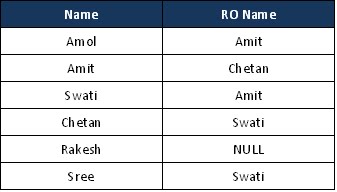
If we execute the above query we get all the rows, including the row that has a null value in the RO_ID column. The results are shown below. The RO NAME for 2nd record is NULL as Rakesh does not have a Manager.

Monday, April 25, 2011

Import Bulk Data to SQL Server Using SqlBulkCopy

Import Bulk Data to SQL Server Using SqlBulkCopy

using System;
using System.Data;
using System.Drawing;
using System.Linq;
using System.Text;
using System.Data.Sql;
using System.Data.SqlClient;

Public class bulkcopyTest
{

Public void bulkcopyTestEG(DataTable dtEmport)
{

try
{
OleDbConnection Con = CreateConnection("Connection_String");

//Open bulkcopy connection.
using (SqlBulkCopy bulkcopy = new SqlBulkCopy(Con))
{
//Set destination table name
//to table previously created.
bulkcopy.DestinationTableName = "Bulk_Copy_Test";

try
{
bulkcopy.WriteToServer(dtEmport);
}
catch (Exception ex)
{
MessageBox.Show(ex.Message);
}

}
}
}
}

Import Data from Excel in SQL server.

Import Data from Excel in SQL server.

using System;
using System.Collections.Generic;
using System.Text;
using System.Data;
using System.Data.OleDb;
using System.ComponentModel;
namespace ExcelImport
{
public class ExcelBase : Component, IDisposable
{
///
/// Creates a NEW connection. If this method is called directly, this
/// class will not check if it is closed.
/// To get a handled connection, use the property.
///

///
public OleDbConnection CreateConnection()
{
return new OleDbConnection("Provider=Microsoft.ACE.OLEDB.12.0;Data Source=c:\myFolder\myOldExcelFile.xls;Extended Properties="Excel 12.0;HDR=YES");
}
public DataTable GetDataFromExcel()
{
try
{
OleDbConnection Conn = CreateConnection();

DataTable dt = new DataTable();

OleDbDataAdapter DA = new OleDbDataAdapter("Select * From [Sheet1$]",Conn);

DA.Fill(dt);

return dt;
}
finally
{
CloseConnection(true);
}
}
}

Friday, March 11, 2011

Copy Pecific Columns(With Data) of One DataTable To Unother DataTable

Copy Pecific Columns(With Data) of One DataTable To Unother DataTable

There are two datatable DT1 And DT2

DT1 Consists of below 5 Coloumns:

1. EmpID
2. EmpName
3. Department
4. Designation
5. Reporting_Office

Now I Want to Copy Only below 3 columns data to DT2

1. EmpID
2. EmpName
3. Department

Code :

// Create Array with required coloumns Name
string[] cols = {"EmpID","EmpName","Designation"};

// Create new Datatable
DataTable DT2 = new DataTable();

// Fill datatable with new colunms data
DT2 = DT1.DefaultView.ToTable("DT2", false, cols);

Fill Array With DataTable in C#.Net

// Create Array to hold the data of DataTable
object[,] DataArray = new object[dt.Rows.Count, dt.Columns.Count];

//Fill DataTable in Array
for (int row = 0; row < dt.Rows.Count; row++)
{
DataRow dr = dt.Rows[row];
for (int col = 0; col < dt.Columns.Count; col++)
{
arr[row, col] = dr[col];
}
}

Export DataTable to Excel in C#.Net

This is one of the fastest way to export data to Excel file from DataTable

You Need to Import below 2 Libraries for this class to work.
1. Microsoft Office 12.0 Object Library
2. Microsoft Excel 12.0 Object Library


using System;
using System.Collections.Generic;
using System.Linq;
using System.Text;
using System.Data;
using System.Threading;
using System.IO;

namespace ExportData2Excel
{
class Export2Excel
{

public void export(DataTable dt)
{
//Create Excel Objects
Microsoft.Office.Interop.Excel.Application oExcel = new Microsoft.Office.Interop.Excel.Application();
Microsoft.Office.Interop.Excel.Workbooks oBooks;
Microsoft.Office.Interop.Excel.Sheets oSheets;
Microsoft.Office.Interop.Excel.Workbook oBook;
Microsoft.Office.Interop.Excel.Worksheet oSheet;

//Create New Excel WorkBook
oExcel.Visible = true;
oExcel.DisplayAlerts = false;
oExcel.Application.SheetsInNewWorkbook = 1;
oBooks = oExcel.Workbooks;

oBook = (Microsoft.Office.Interop.Excel.Workbook)(oExcel.Workbooks.Add(Type.Missing));
oSheets = oBook.Worksheets;
oSheet = (Microsoft.Office.Interop.Excel.Worksheet)oSheets.get_Item(1);
oSheet.Name = "FinalData";

// Create Array to hold the data of DataTable
object[,] arr = new object[dt.Rows.Count, dt.Columns.Count];

//Fill DataTable in Array
for (int r = 0; r < dt.Rows.Count; r++)
{
DataRow dr = dt.Rows[r];
for (int c = 0; c < dt.Columns.Count; c++)
{
arr[r, c] = dr[c];
}
}

//Set Excel Range to Paste the Data
Microsoft.Office.Interop.Excel.Range c1 = (Microsoft.Office.Interop.Excel.Range)oSheet.Cells[1, 1];
Microsoft.Office.Interop.Excel.Range c2 = (Microsoft.Office.Interop.Excel.Range)oSheet.Cells[1 + dt.Rows.Count - 1, dt.Columns.Count];
Microsoft.Office.Interop.Excel.Range range = oSheet.get_Range(c1, c2);

//Fill Array in Excel
range.Value2 = arr;

}

}

}